Steam playtime not updating? What to check
Compare Steam-reported hours, estimated session time, and recorded game-hours. Diagnose a paused session and check when your library last synced.
Read the counters separately
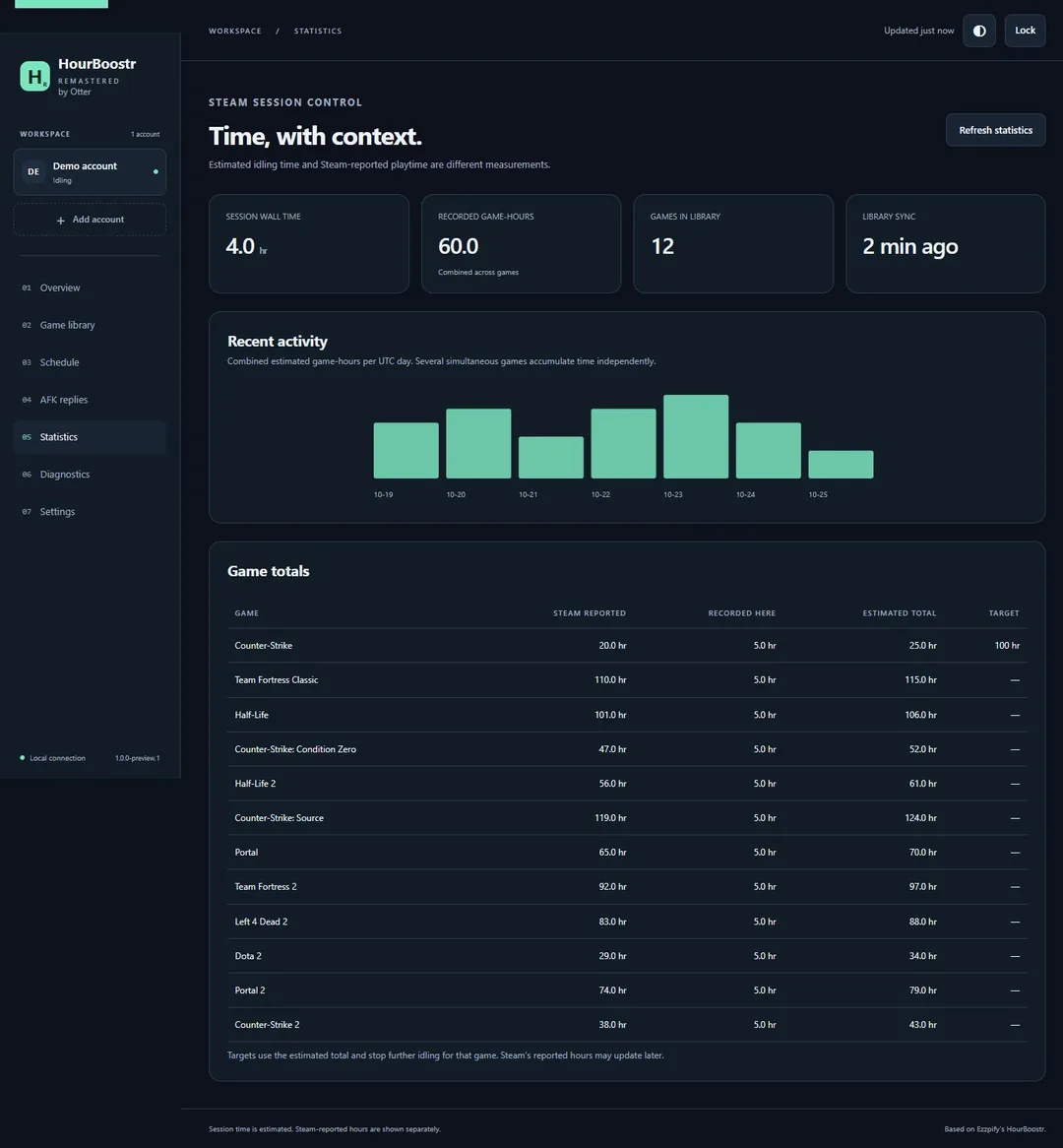
HourBoostr’s statistics show several kinds of time. Before chasing a missing hour, check which number you are looking at.
- Session time
- The worker’s estimate of how long the current session has been active.
- Recorded game-hours
- The sum of the app’s per-game estimates. If three games are reported for 20 minutes each, that is one combined game-hour across 20 minutes of elapsed time.
- Steam-reported playtime
- The value returned when the app reads your Steam library. It comes from a separate refresh and may differ from the estimate.
Check why a game stopped accumulating time
- Open Overview. Check if the account is connected and the game appears under Games reported as playing.
- If the game is missing, check whether the account is paused, outside its schedule, or playing on another Steam client. Check the selected games, exclusions, and hour targets.
- Check the last library sync and refresh the library before comparing the Steam-reported column again. If the estimated counter moves and the Steam value does not, you have established which part of the dashboard is updating.
- If you are in the hosted Members preview, the counters are simulated. Check Steam itself to see playtime recorded by Valve.
The app can report what it sent and show the value it received from Steam. Valve decides what counts. A playtime estimate alone cannot establish that Steam credited a session.